



Docker Installation.
There are several Docker specific jargon that we need to clarify before diving into installation and usage examples. Below are commonly used terminologies in Docker ecosystem.
- Docker daemon: This is also called Docker Engine, it is a background process which runs on the host system responsible for building and running of containers.
- Docker Client: This is a command line tool used by the user to interact with the Docker daemon.
- Docker Image: An image is an immutable file that’s essentially a snapshot of a container. A docker image has a file system and application dependencies required for running applications.
- Docker container: This is a running instance of a docker image with an application and its dependencies. Each container has a unique process ID and isolated from other containers. The only thing containers share is the Kernel.
- Docker registry: This is an application responsible for managing storage and delivery of Docker container images. It can be private or public.
We will install Docker CE on RHEL 8 / CentOS 8. We will start with the installation of Docker then Docker Compose.
There are two editions of Docker available.
- Community Edition (CE): ideal for individual developers and small teams looking to get started with Docker and experimenting with container-based apps.
- Enterprise Edition (EE): Designed for enterprise development and IT teams who build, ship, and run business-critical applications in production at scale.
The Docker Enterprise Edition requires an active license to use. In this guide, we will install Docker CE on RHEL 8. Let’s add Docker repository before we can install it.
# sudo curl https://download.docker.com/linux/centos/docker-ce.repo -o /etc/yum.repos.d/docker-ce.repo
This command will download Docker repository file to /etc/yum.repos.d/docker-ce.repo. Let’s update RPM index cache.
# sudo yum makecache
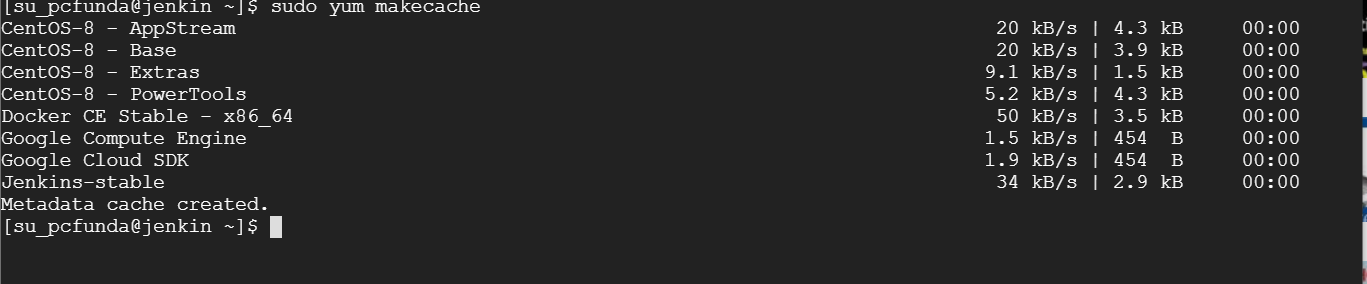
Finally install Docker CE by running the command below in your terminal.
# sudo dnf -y install docker-ce --nobest

Start and enable Docker Service to start at boot.
# sudo systemctl enable --now docker

The docker service status should indicate running.
# sudo systemctl status docker

The docker group is created, but no users are added to the group. Add your user to this group to run docker commands without sudo.
# sudo usermod -aG docker $USER

# sudo id $USER

Logout and Login again to use Docker without sudo. The version of Docker installed can be checked with:
# sudo newgrp docker
# sudo docker version

Install Docker-Compose.
sudo curl -L "https://github.com/docker/compose/releases/download/1.25.5/docker-compose-$(uname -s)-$(uname -m)" -o /usr/local/bin/docker-compose

Apply executable permissions to the binary:
sudo chmod +x /usr/local/bin/docker-compose
Create a symbolic link to /usr/bin.
sudo ln -s /usr/local/bin/docker-compose /usr/bin/docker-compose

In Next part We will configure Jenkins.