Subscribe Us


Breaking

Recent In Voip

Popular

Comments

Recent

Automating Integration & Deployment Using Git, Jenkins and Docker Part 6 /Creating Build and Deploy Pipelines

1.Login to Jenkins portal. 
Then Click on New Items.

Automating Integration & Deployment Using Git, Jenkins and Docker Part 5 /Integrating Git HUb with jenkins

GitHub Integration with Jenkins.

Precondition

Jenkins GitHub plugin.
1.Make Sure to Install Git Hub Integration Plugin.

2.If not you can install it from Jenkins Plug Manager.


GitHub Personal Access Token.

Let’s go down the rabbit hole. You first need to create GitHub personal access token for user that has access to GitHub repository. In my case, that was my GitHub account.
Login to the Git Hub Account. www.github.com
  1. Click on your GitHub avatar
  2. Select Settings


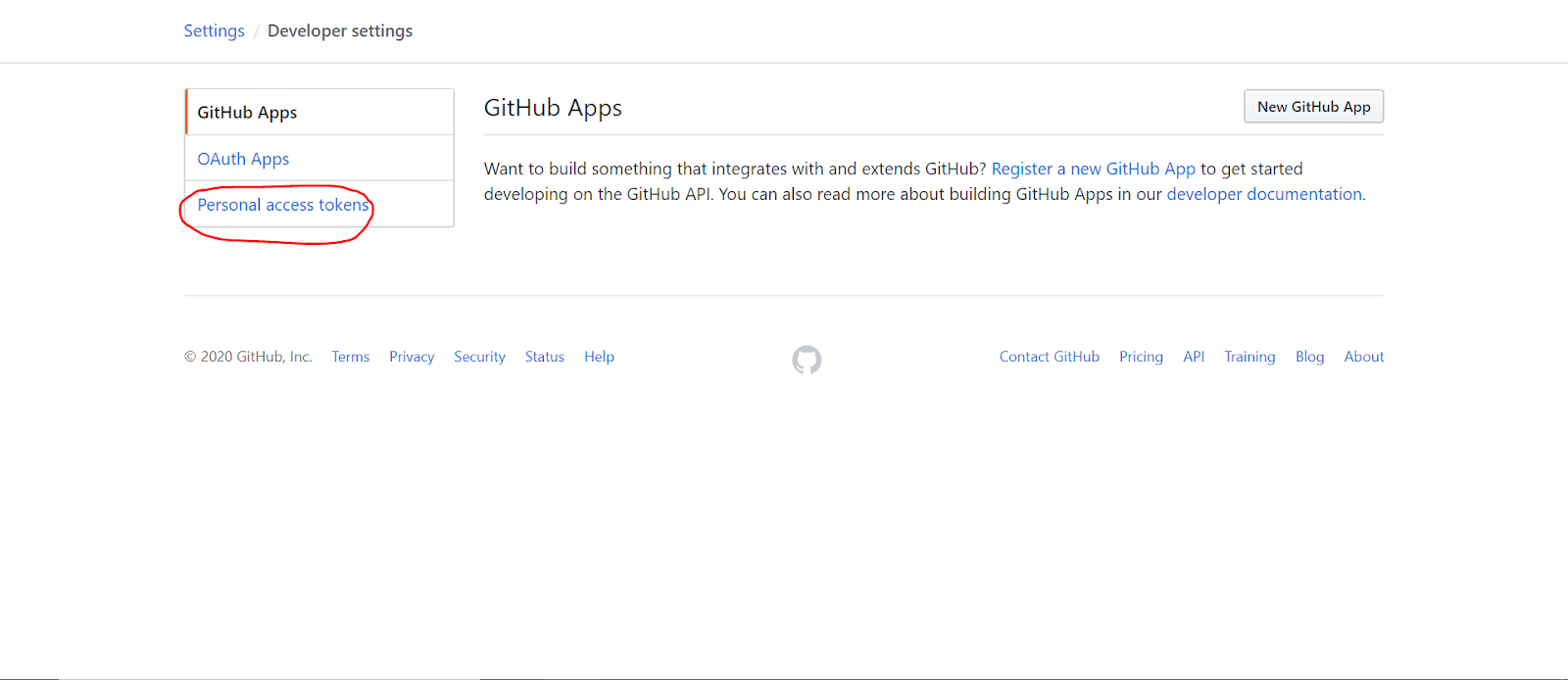
  1. Select Developer Settings 


  1. Select Personal Access Token
  1. Enter your GitHub password

Hmmm, possible GitHub UX issue, this is 4th level depth to get to this feature. Step 5 shows that GitHub knows web security.
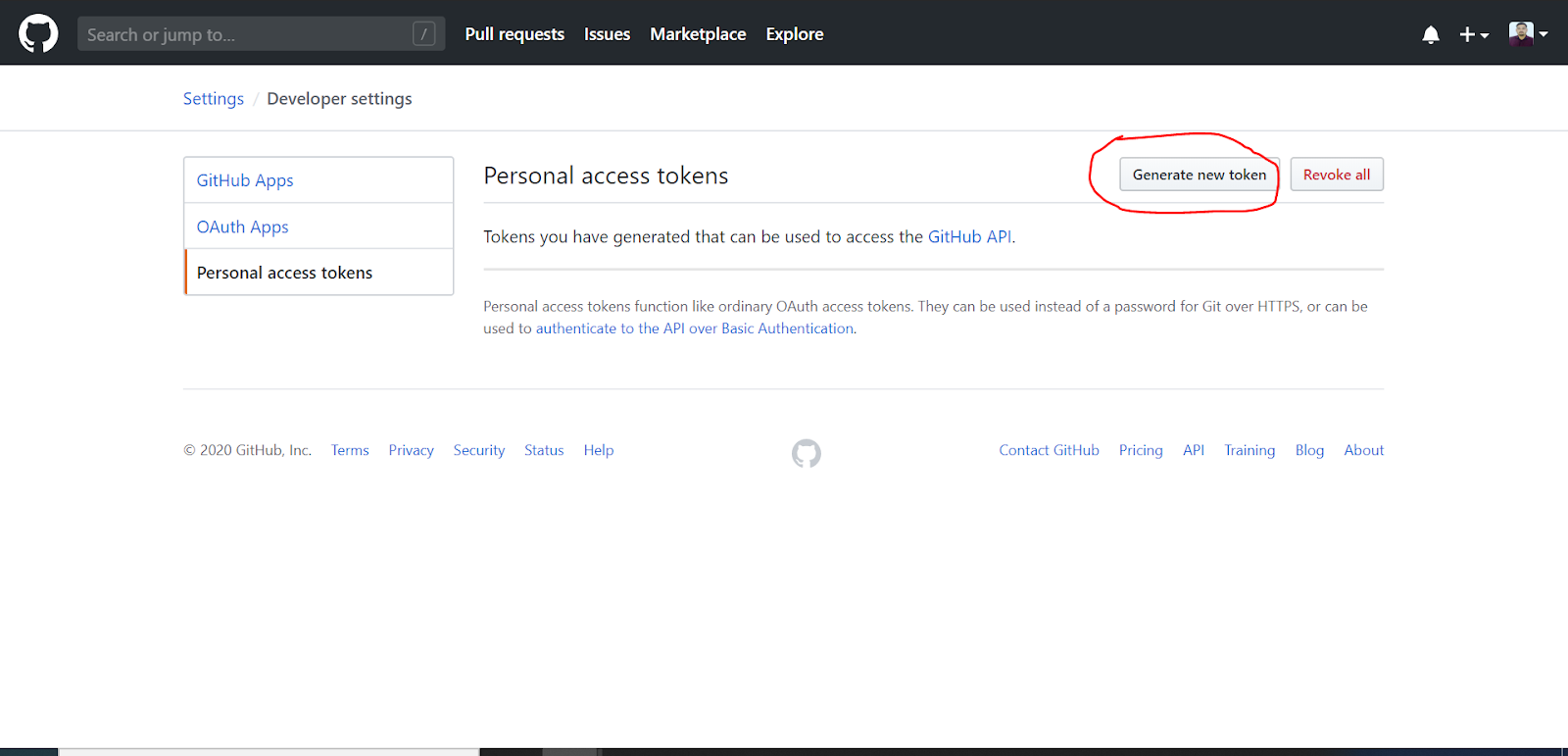
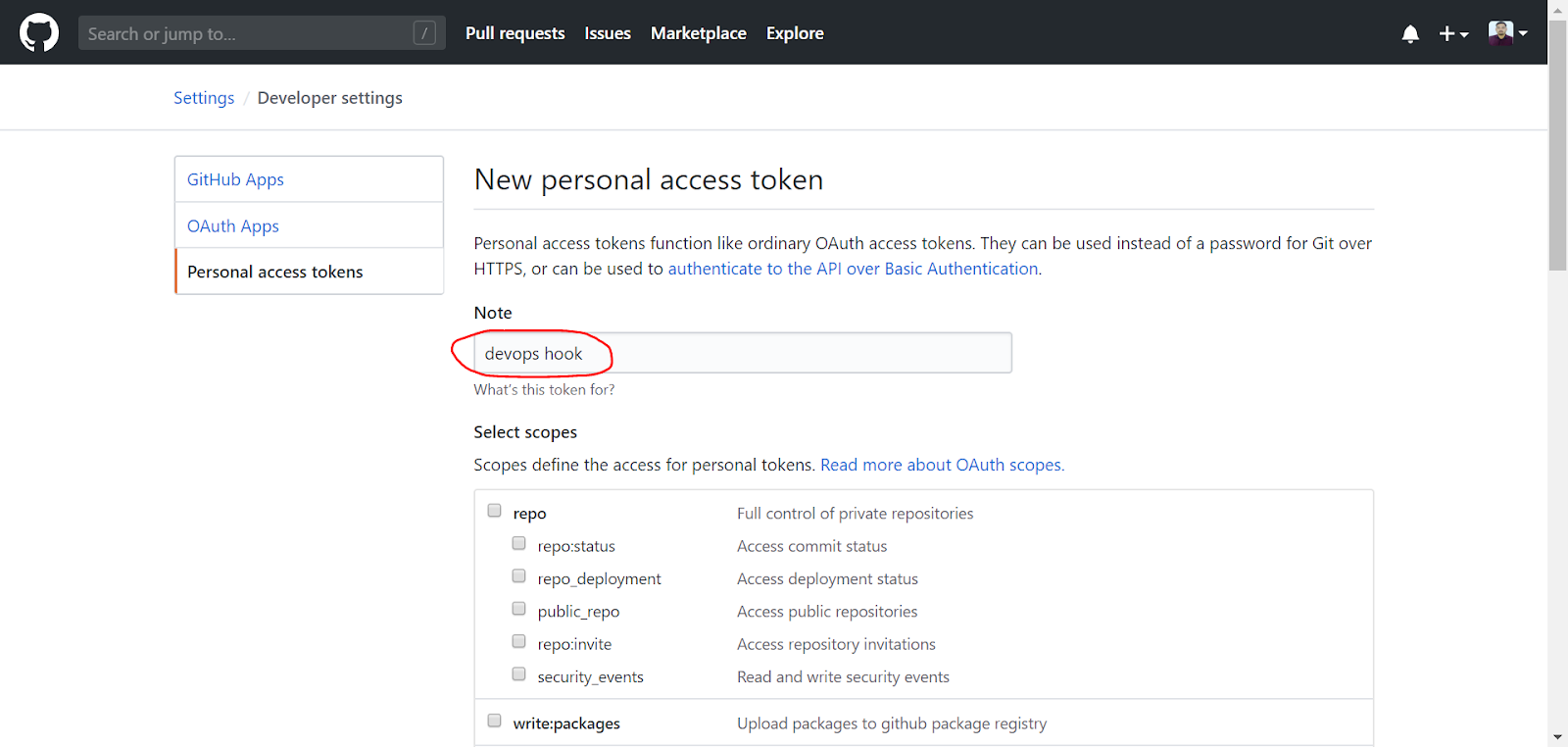
  1. Click generate new token

  1. Enter meaningful name
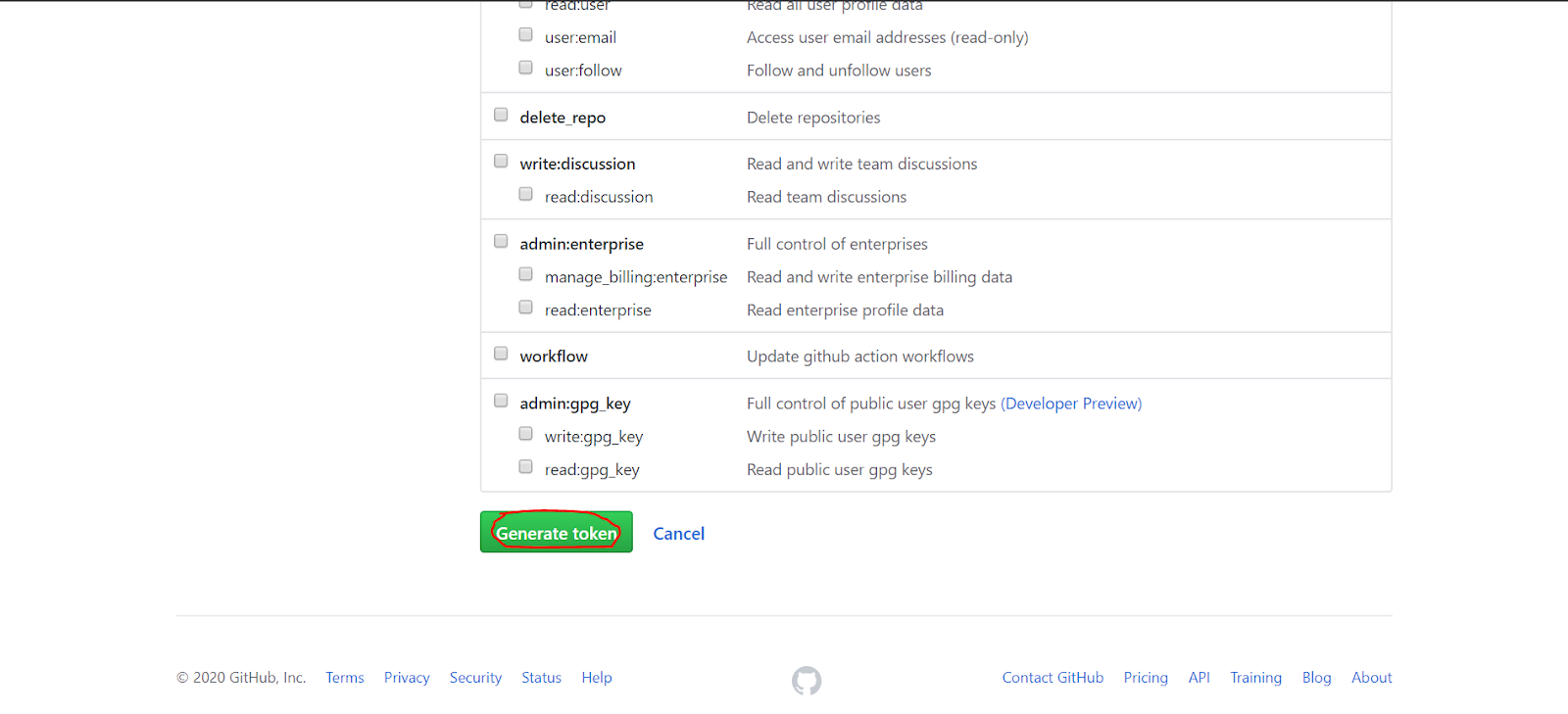
  2. Select permissions: admin:repo_hook, repo
  3. Generate token

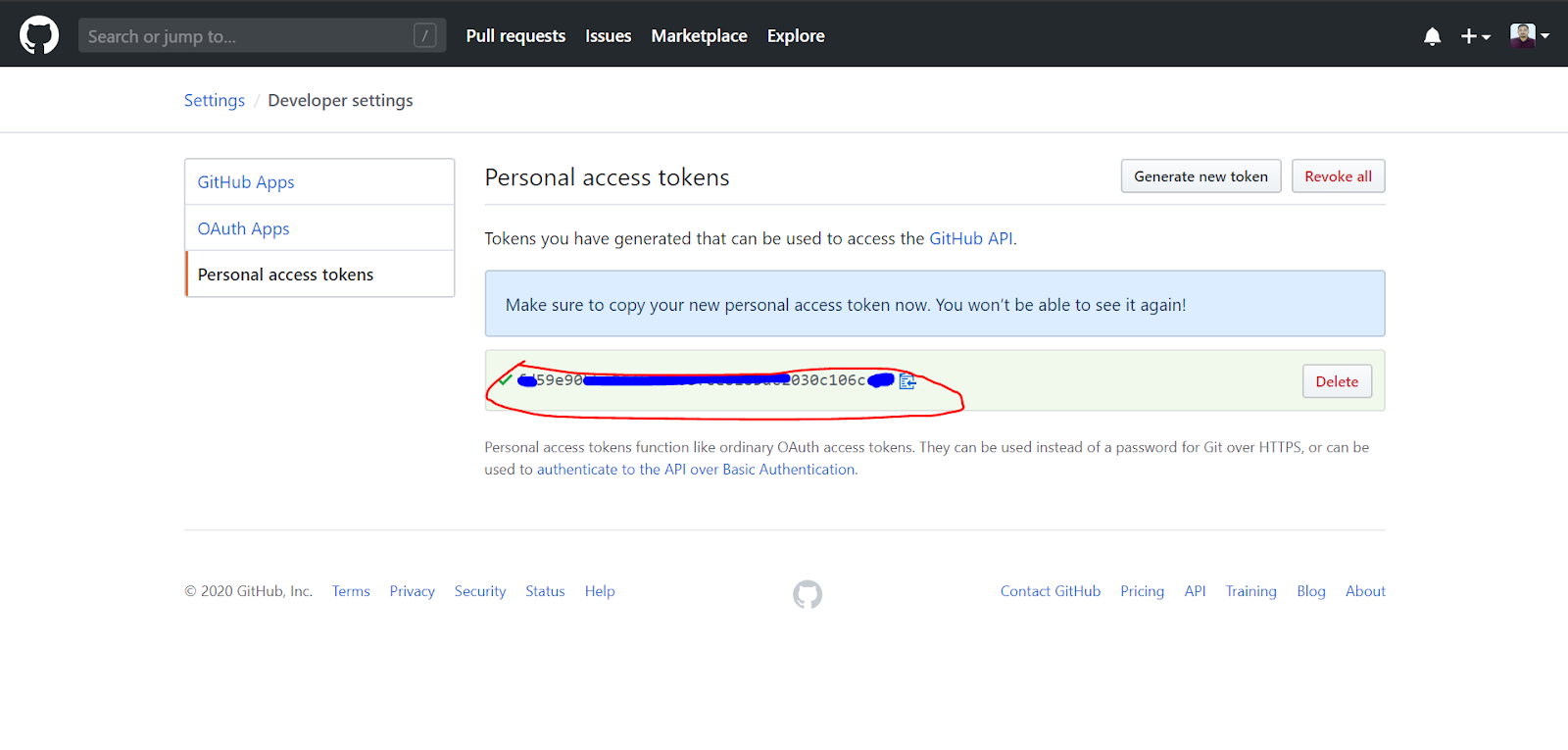
  1. Copy token. Be careful, this is your only chance to copy it.
Again, proof that GitHub understands web security.
Jenkins Global credentials
Using GitHub token, you will create Jenkins global credential.
  1. In Jenkins, click credentials
  2. Click global (any of provided links)
My note on Jenkins UX. Its free, and I understand that team do not have much resources. But credentials UX is really messed up.
  1. On left, click Add credentials
  2. For kind select secret text
  3. For scope leave Global option
  4. In secret, paste GitHub token.
  5. Enter meaningful description. Trust me, this is very important, otherwise you will not be able to select this credential.

Jenkins Github settings
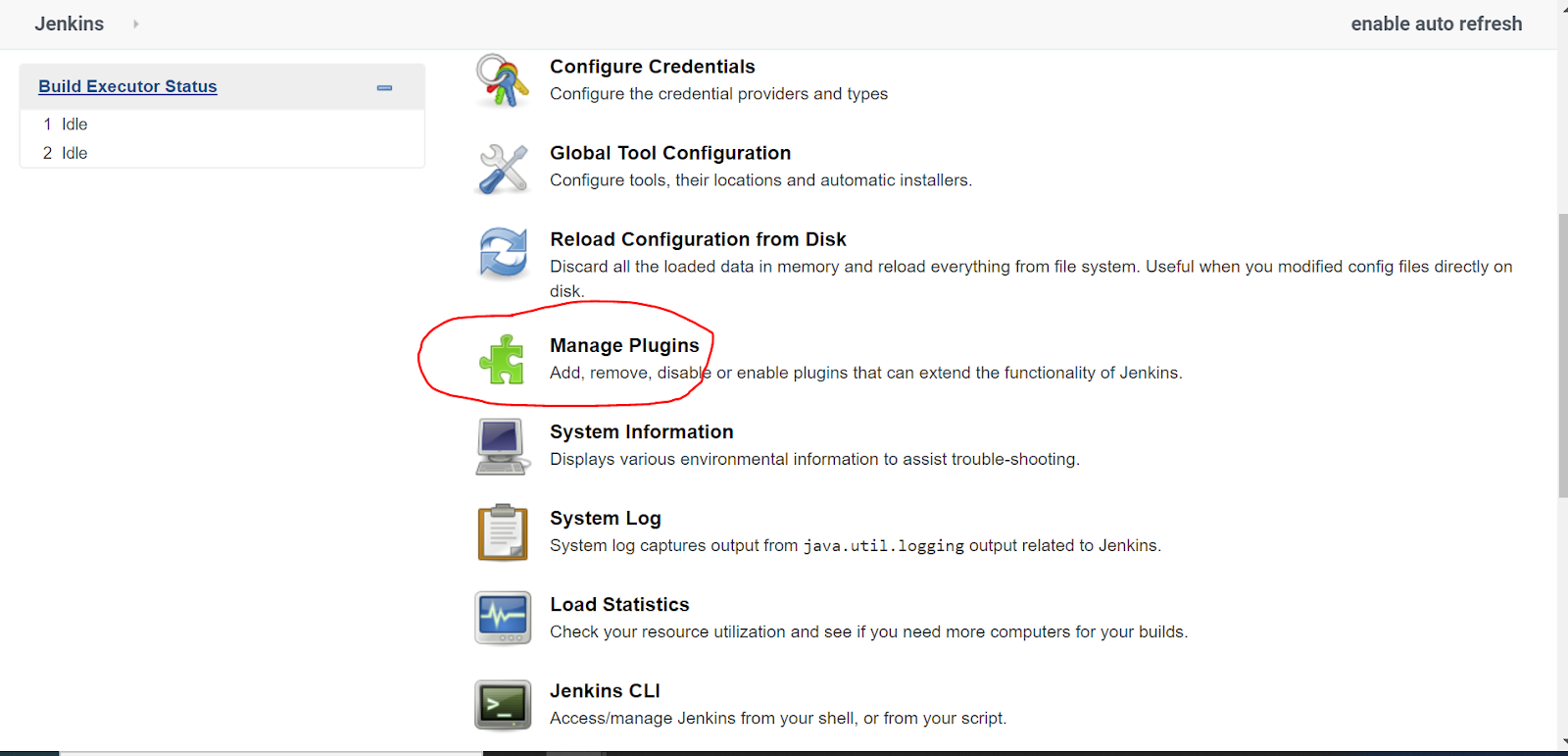
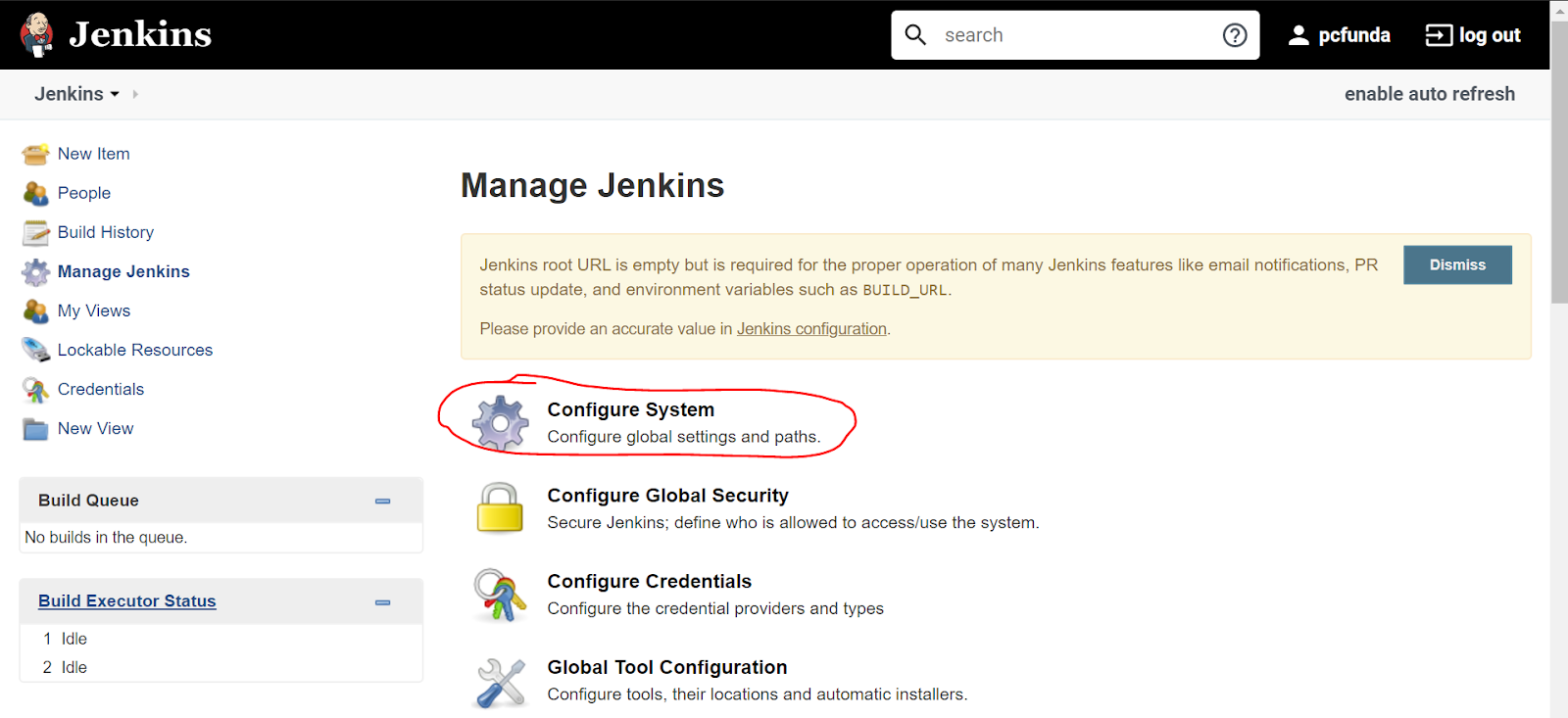
  1. Manage Jenkins
  2. Configure System
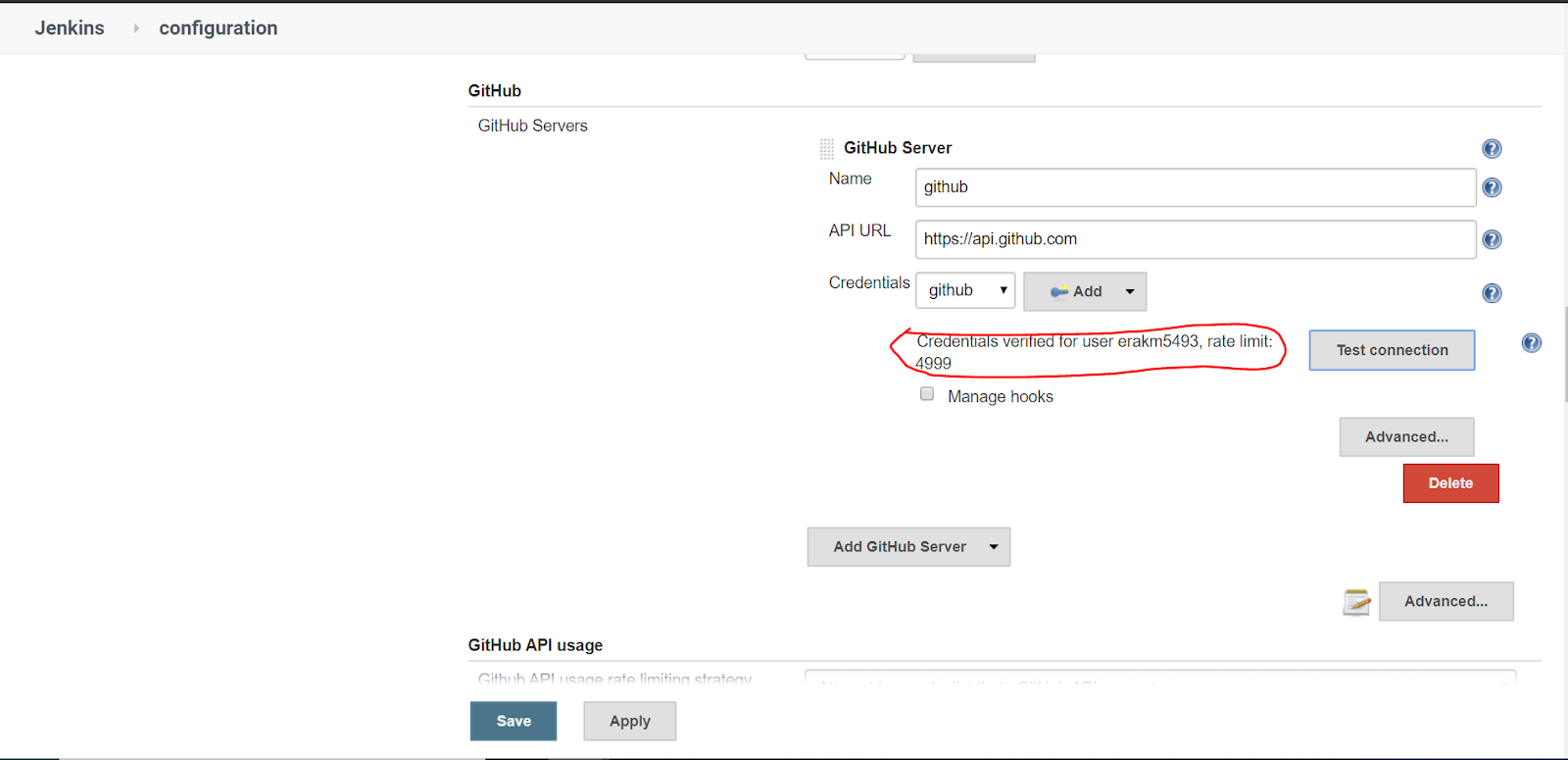
  3. Scroll down to Github settings
  4. Add github server

  1. Set meaningful name
  2. Leave default API url
  3. Select credentials created in previous step.
  4. Click apply
  5. Click test connection. Following message should appear: Credentials verified for user xxx, rate limit: 4998
Note rate limit. You have 5000 requests per hour for all github integrations, not just Jenkins.

Go to My repository https://github.com/erakm5493/microservices and then fork it .

Note -From now own wards you must use your own repository which you have forked.
I will demonstrate further step using my own repository. (You have to use it your own)
GitHub repository webhook
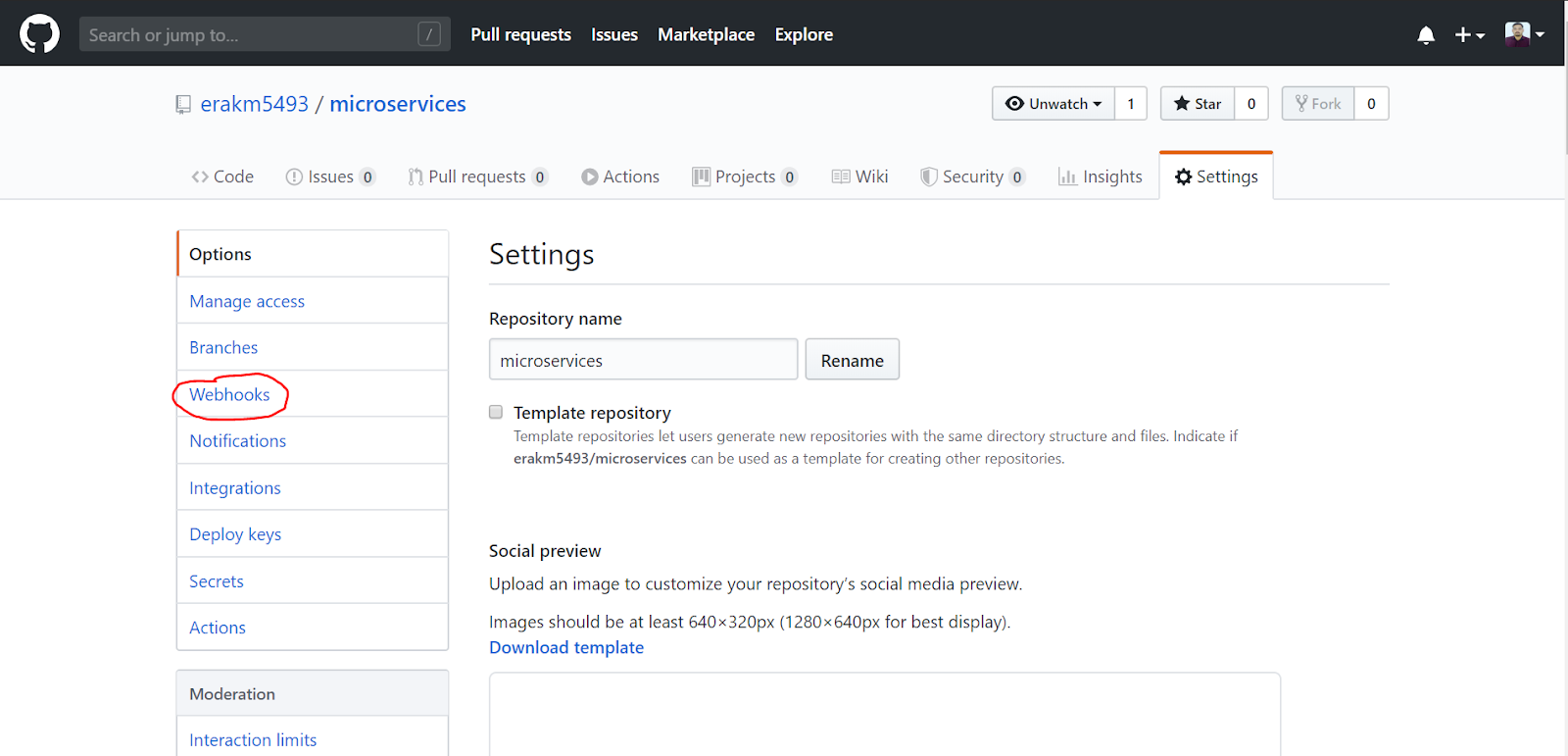
  1. Go to GitHub repository that you are integrating with Jenkins. You need to have admin rights for that repo.
  2. Click Settings
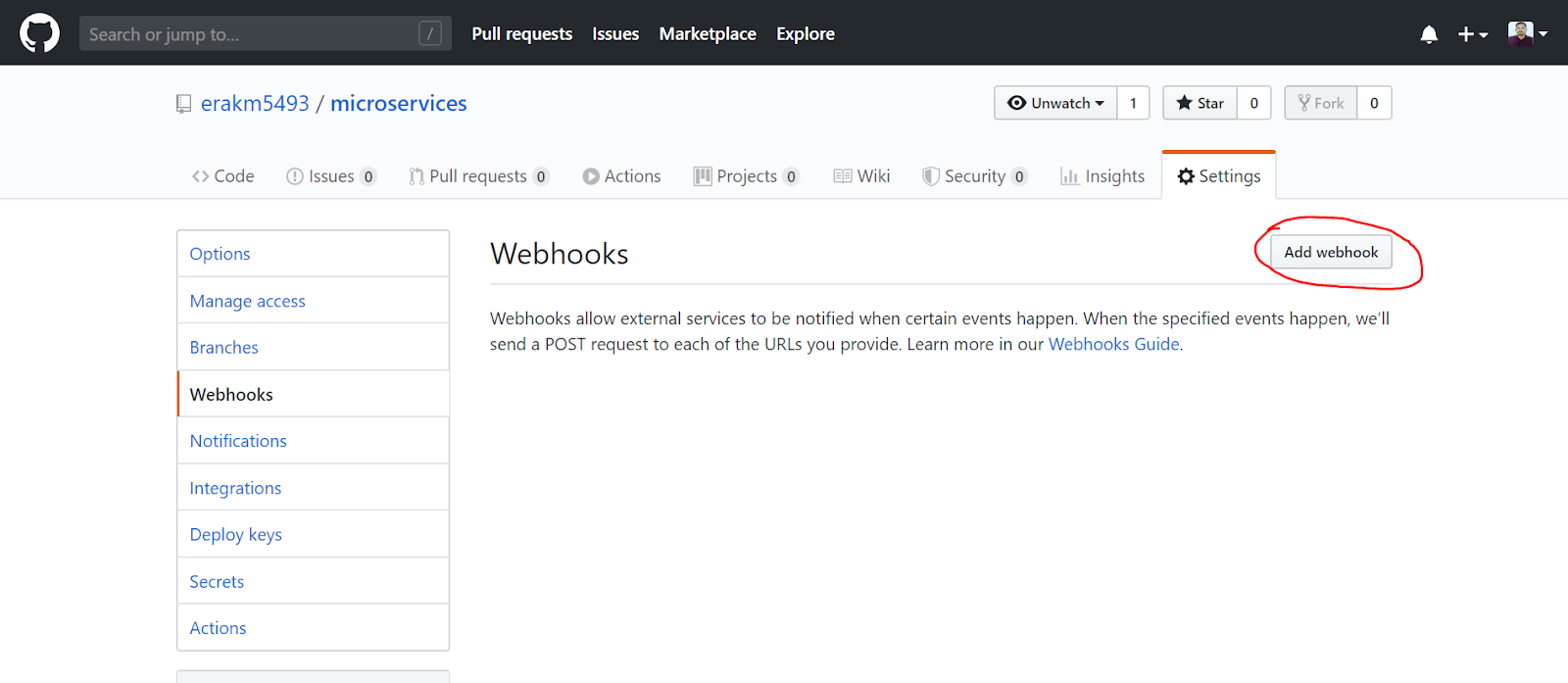
  3. Select webhooks
  4. Add webhook
  5. Payload url is jenkins_url_with_http_or_https/github-webhook/      
  6. Content type: application/json
  7. Just push event if you only want to trigger jenkins jobs by branch pushes.
  8. Check Active
  9. Click update
  10. Recent deliveries should have green check icon.
If that is not the case, click on latest delivery that will contain HTTP request/response.

Jenkins job build trigger.

  1. Go to your jenkins job
  2. In Build Triggers section, check out: GitHub hook trigger for GITScm polling

Check

  1. Commit something to your repo in branch for which job is configured.
  2. Job should start executing.

Automating Integration & Deployment Using Git, Jenkins and Docker Part 4 /Integrating Docker Hub with jenkins

Integrating Docker Hub registry account with Jenkins.

1.Create a account at Docker Hub .
Just visit https://hub.docker.com/ and the follow the process to create a account.
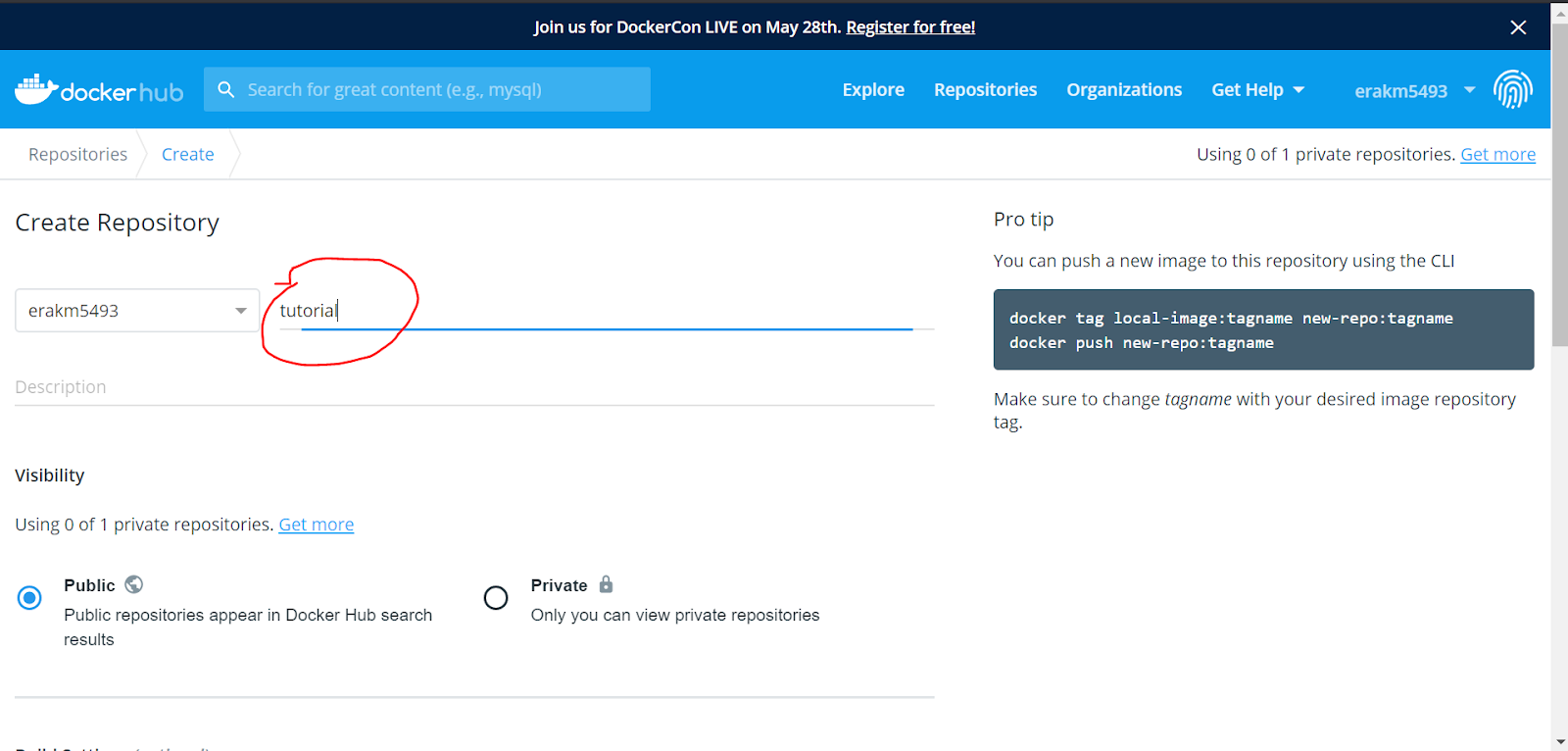
2. After creating account just login into Docker Hub. Once you have successfully just click on the create 
Repository .

3.select a repository name. In this case I have chosen tutorial .

4.If you want to make your repo private you can chose private. Here in this case I have chosen public 
And then click on create.


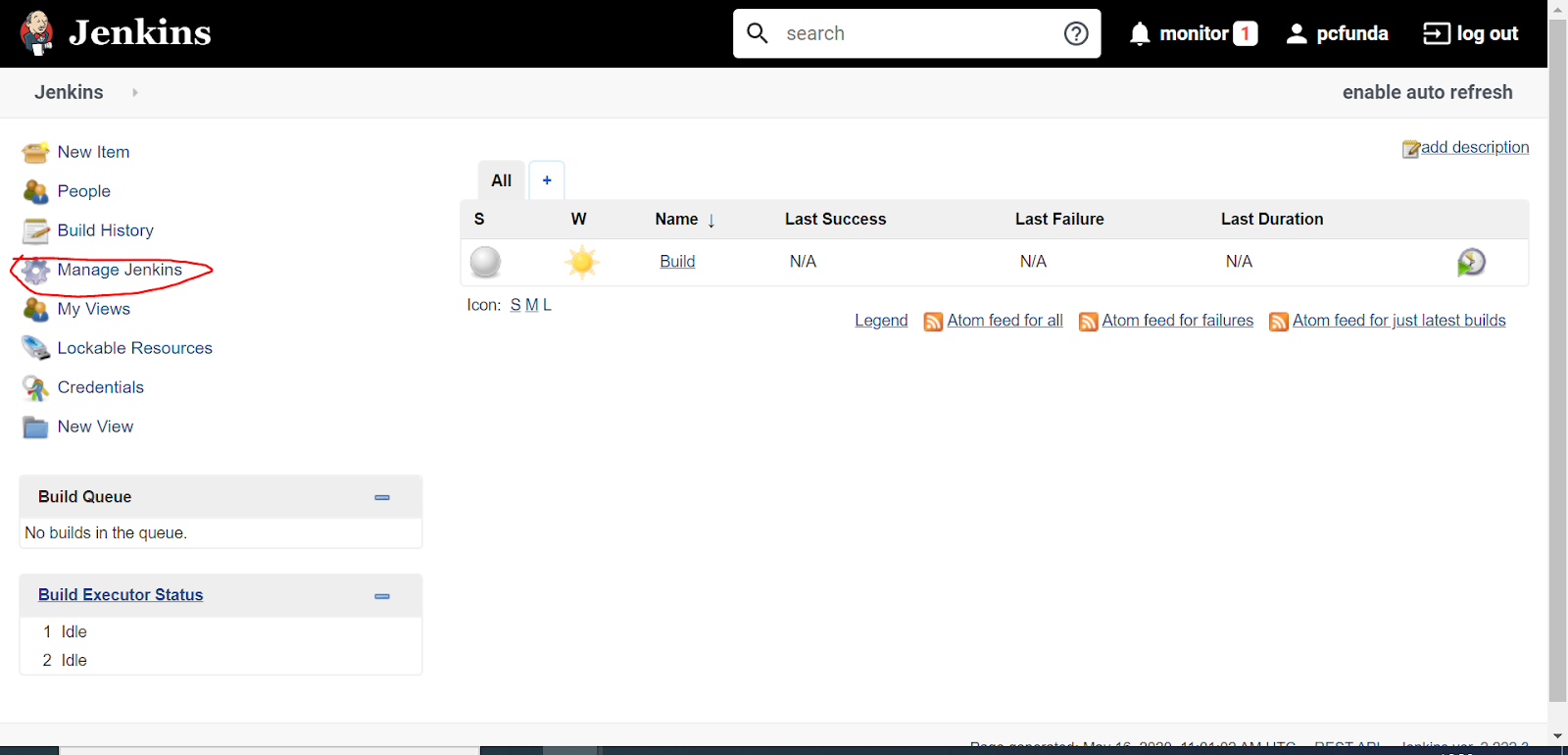
5.Now go to Jenkins. Click on Manage Jenkins .

6.Click on configure credentials.


7.Now in the left-hand side click on Credentials.

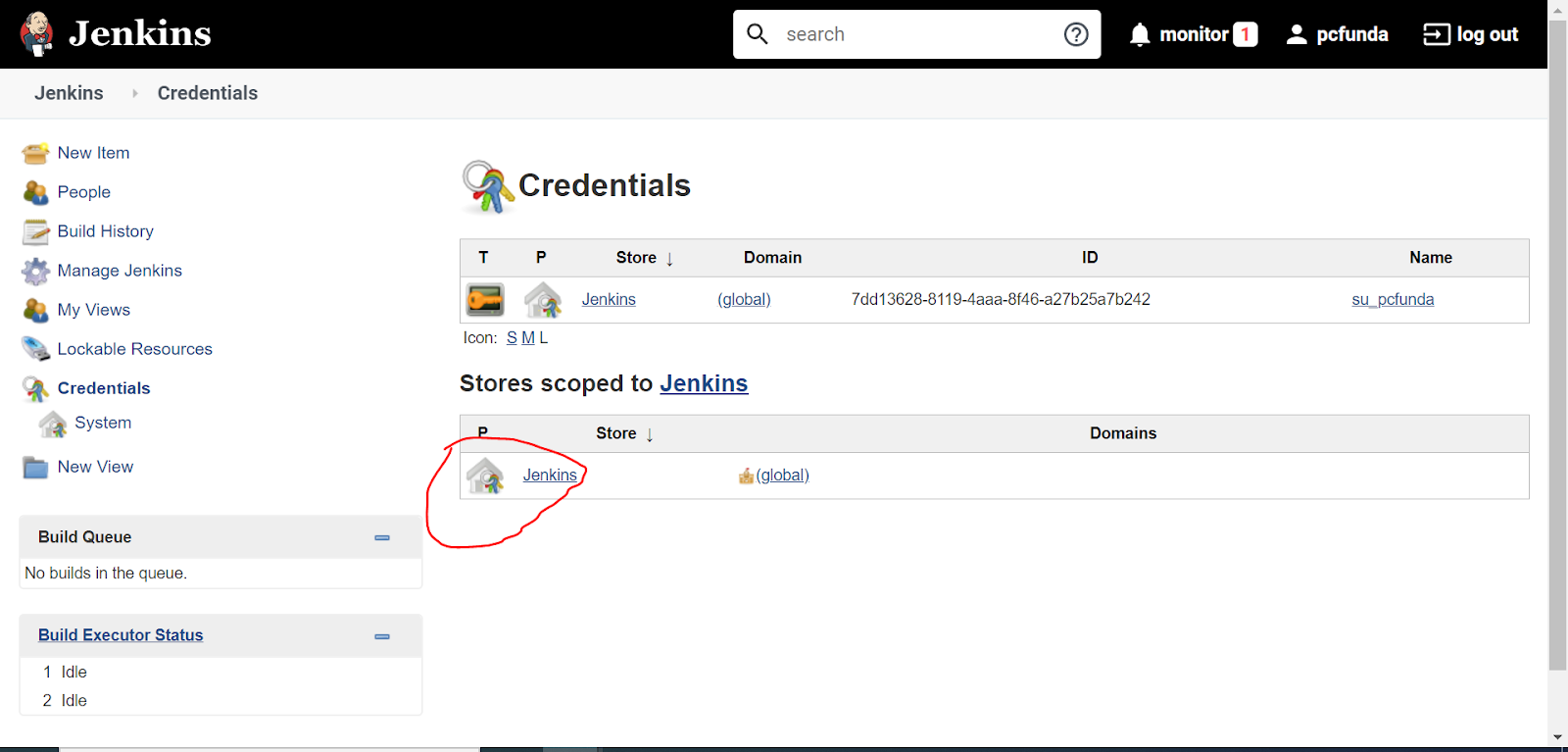
8.Now click on Jenkins as highlighted.
9.Now click on Global Credentials.


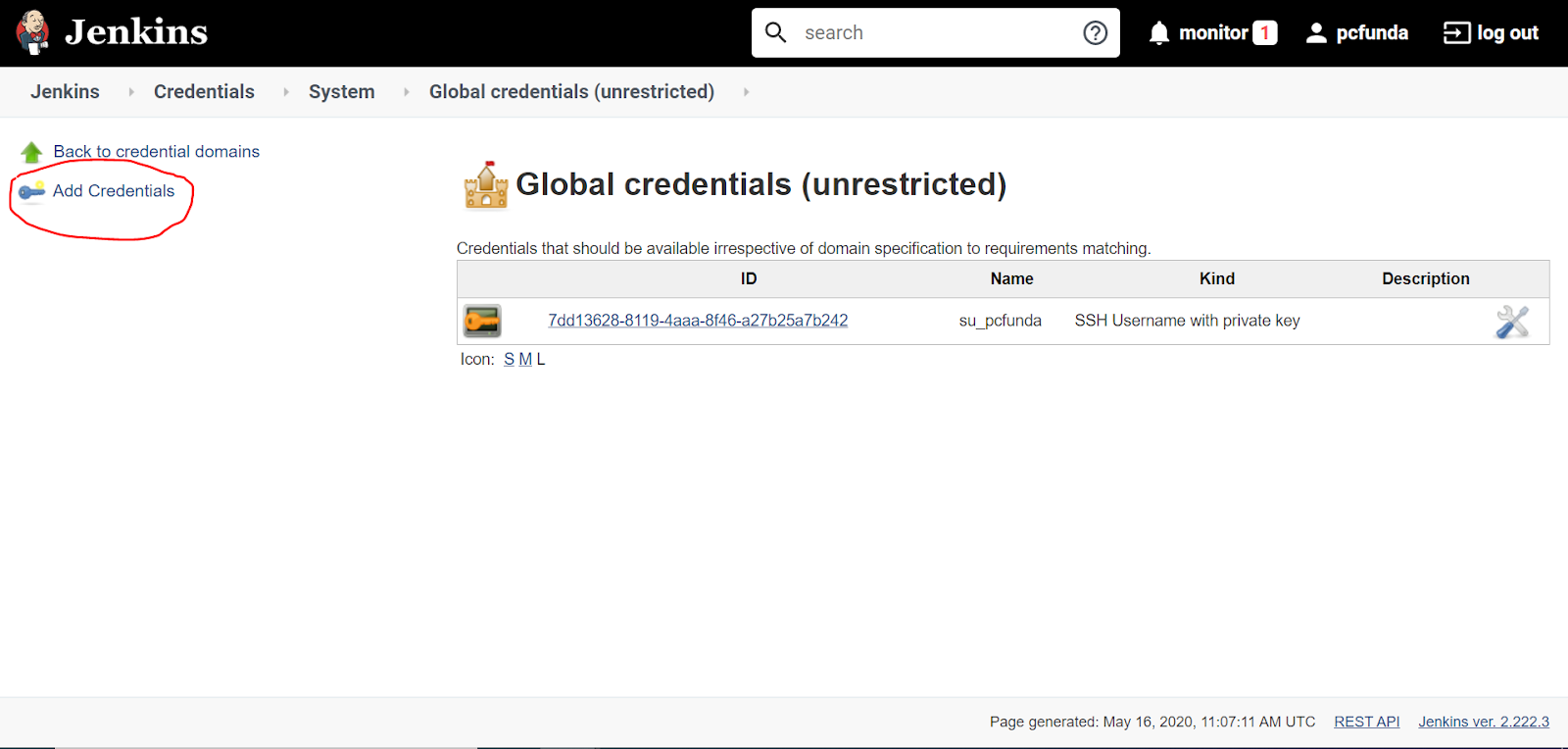
10.Now click on add credentials as Highlighted.

Fill the below with you docker hub credentials and Password and the click ok .

Automating Integration & Deployment Using Git, Jenkins and Docker Part 3 / Docker Installation

 Docker Installation.

There are several Docker specific jargon that we need to clarify before diving into installation and usage examples. Below are commonly used terminologies in Docker ecosystem.
  • Docker daemon: This is also called Docker Engine, it is a background process which runs on the host system responsible for building and running of containers.
  • Docker Client: This is a command line tool used by the user to interact with the Docker daemon.
  • Docker Image: An image is an immutable file that’s essentially a snapshot of a container. A docker image has a file system and application dependencies required for running applications.
  • Docker container: This is a running instance of a docker image with an application and its dependencies. Each container has a unique process ID and isolated from other containers. The only thing containers share is the Kernel.
  • Docker registry: This is an application responsible for managing storage and delivery of Docker container images. It can be private or public.


We will install Docker CE on RHEL 8 / CentOS 8. We will start with the installation of Docker then Docker Compose.
There are two editions of Docker available.
  • Community Edition (CE): ideal for individual developers and small teams looking to get started with Docker and experimenting with container-based apps.
  • Enterprise Edition (EE): Designed for enterprise development and IT teams who build, ship, and run business-critical applications in production at scale.

The Docker Enterprise Edition requires an active license to use. In this guide, we will install Docker CE on RHEL 8. Let’s add Docker repository before we can install it.

# sudo curl https://download.docker.com/linux/centos/docker-ce.repo -o /etc/yum.repos.d/docker-ce.repo   

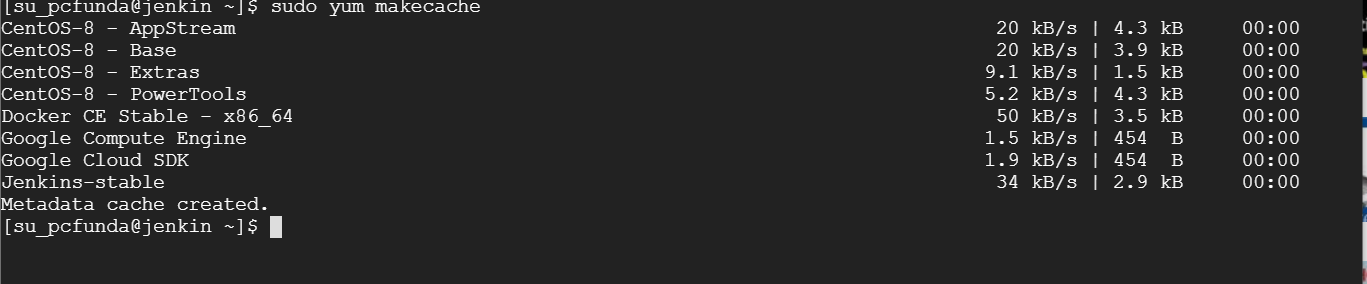
This command will download Docker repository file to /etc/yum.repos.d/docker-ce.repo. Let’s update RPM index cache.
#  sudo yum makecache


Finally install Docker CE by running the command below in your terminal. 
#   sudo dnf -y  install docker-ce --nobest


Start and enable Docker Service to start at boot.
#  sudo systemctl enable --now docker

The docker service status should indicate running.
 # sudo systemctl status  docker

The docker group is created, but no users are added to the group. Add your user to this group to run docker commands without sudo.
#  sudo usermod -aG docker $USER

#   sudo id $USER

Logout and Login again to use Docker without sudo. The version of Docker installed can be checked with:
# sudo newgrp docker
# sudo docker version

 
Install Docker-Compose.
sudo curl -L "https://github.com/docker/compose/releases/download/1.25.5/docker-compose-$(uname -s)-$(uname -m)" -o /usr/local/bin/docker-compose

Apply executable permissions to the binary:
 sudo chmod +x /usr/local/bin/docker-compose

Create a symbolic link to /usr/bin.
 sudo ln -s /usr/local/bin/docker-compose /usr/bin/docker-compose


In Next part We will configure Jenkins.

Automating Integration & Deployment Using Git, Jenkins and Docker Part 2 / Git Installation

 
Git Installation 
We will use yum to install GIT in vm.
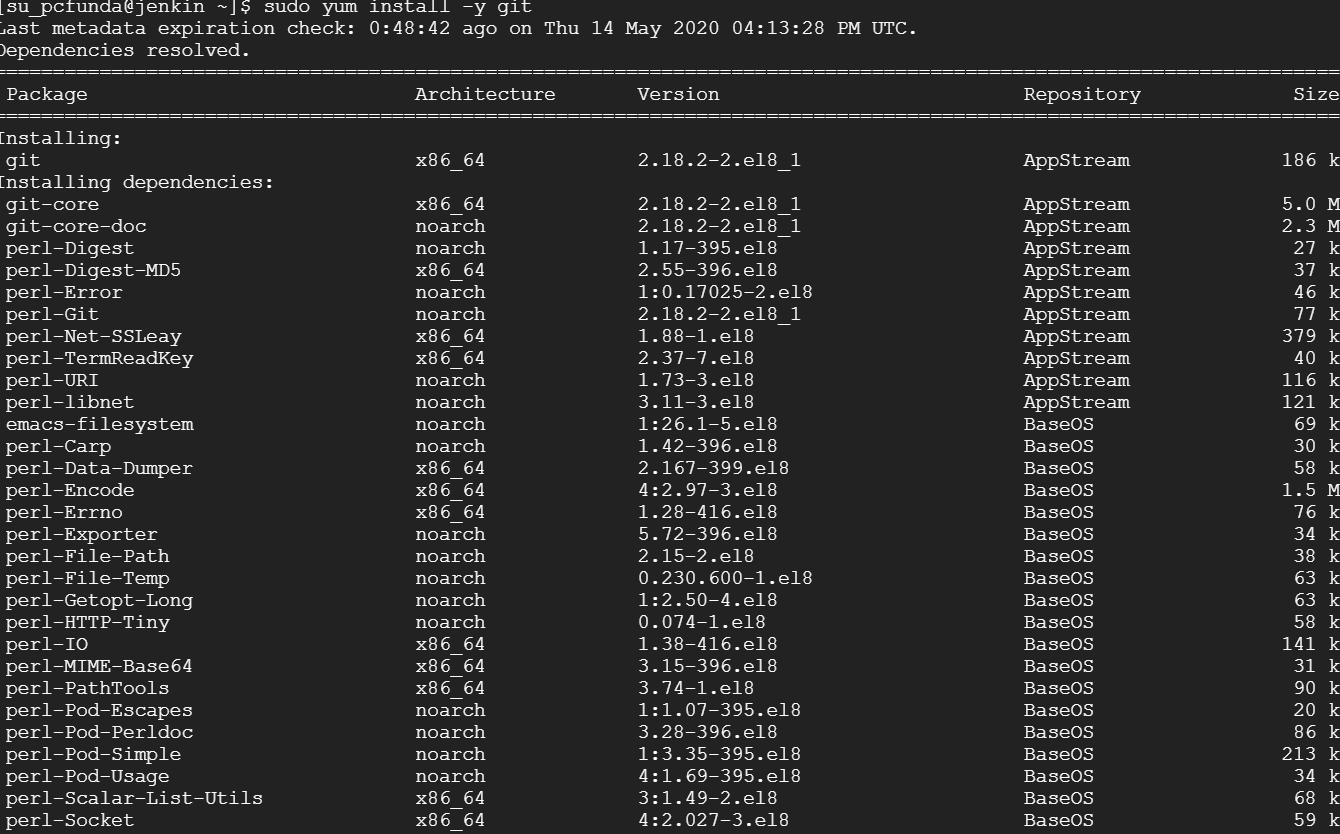
# sudo yum install -y git 


Once installed git, you can verify the version of installed Git using the following command.
 # sudo git --version


Configuring Git 
Now as git is installed on the CentOS machine successfully, now we will need to set up your personal info which will be used when you commit any changes to our code.
# sudo  git config --global user.name "Your Name"
# sudo git config --global user.email "youremail@yourdomain.com"

To verify that the above settings were added successfully, we can list all of the configuration settings that have been added by typing.
 # git config --list

Automating Integration & Deployment Using Git, Jenkins and Docker Part 1/ Jenkins Installation

Perquisite: -
At least 1 Physical /VM public instance Linux Server .
 Application Required.
1.Jenkins
2.Git/GitHub Account
3.Docker/Swarm
4.Docker Hub Account
In this Tutorial we will be using two google virtual machine.
1.We will start with installing Jenkins server on first host (Jenkins)